二进制安装
现在从官网上没有找到可以直接下载的二进制包,只有对应操作系统的rpm包或者deb包这种定制的包,所以我现在采用二进制的安装方式进行安装
下载源码包
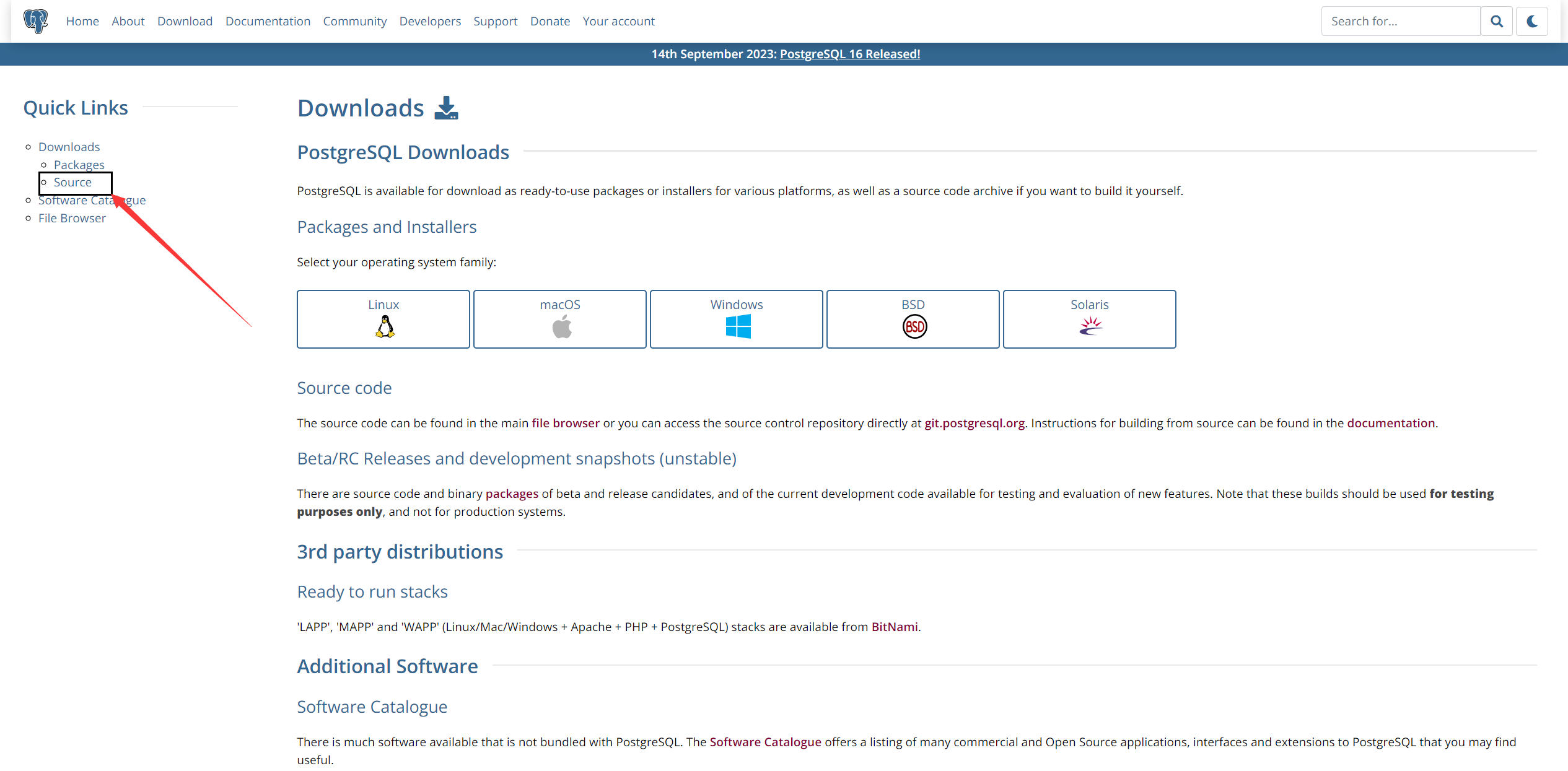
点击进入后,可以找到对应版本的源码包
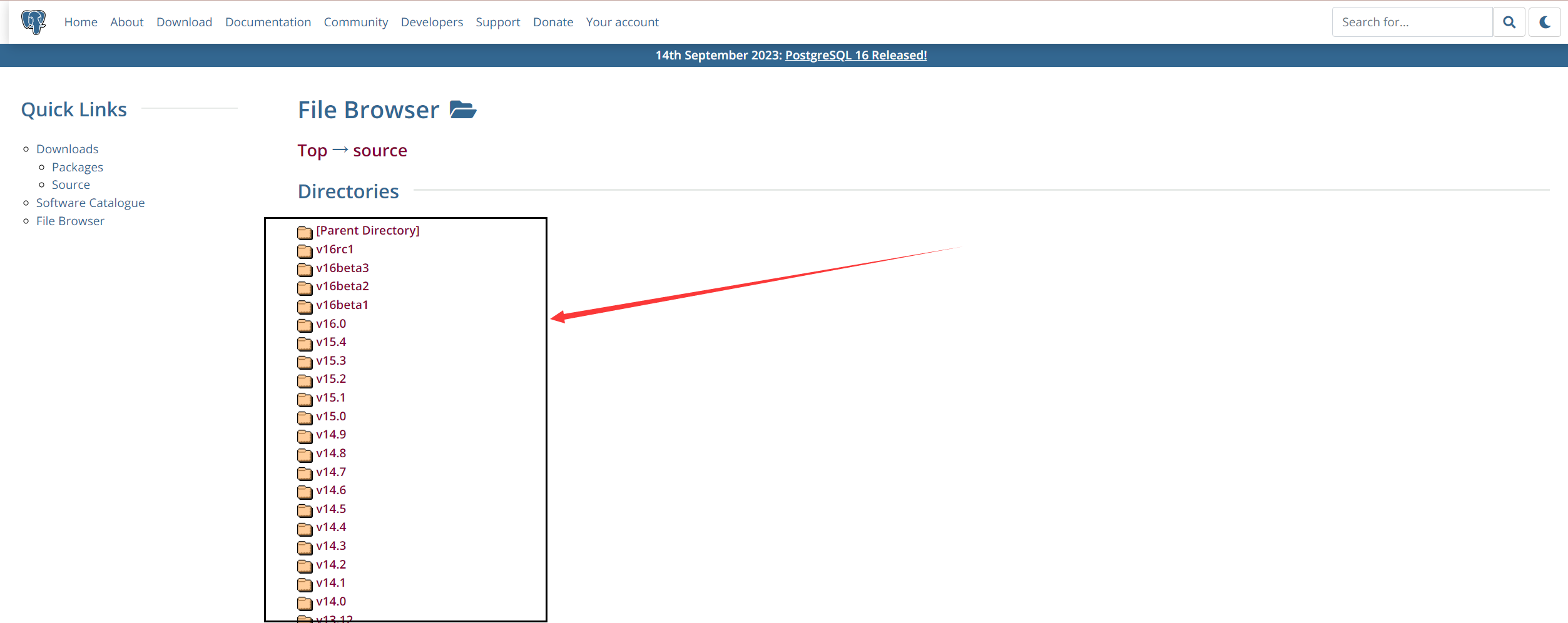
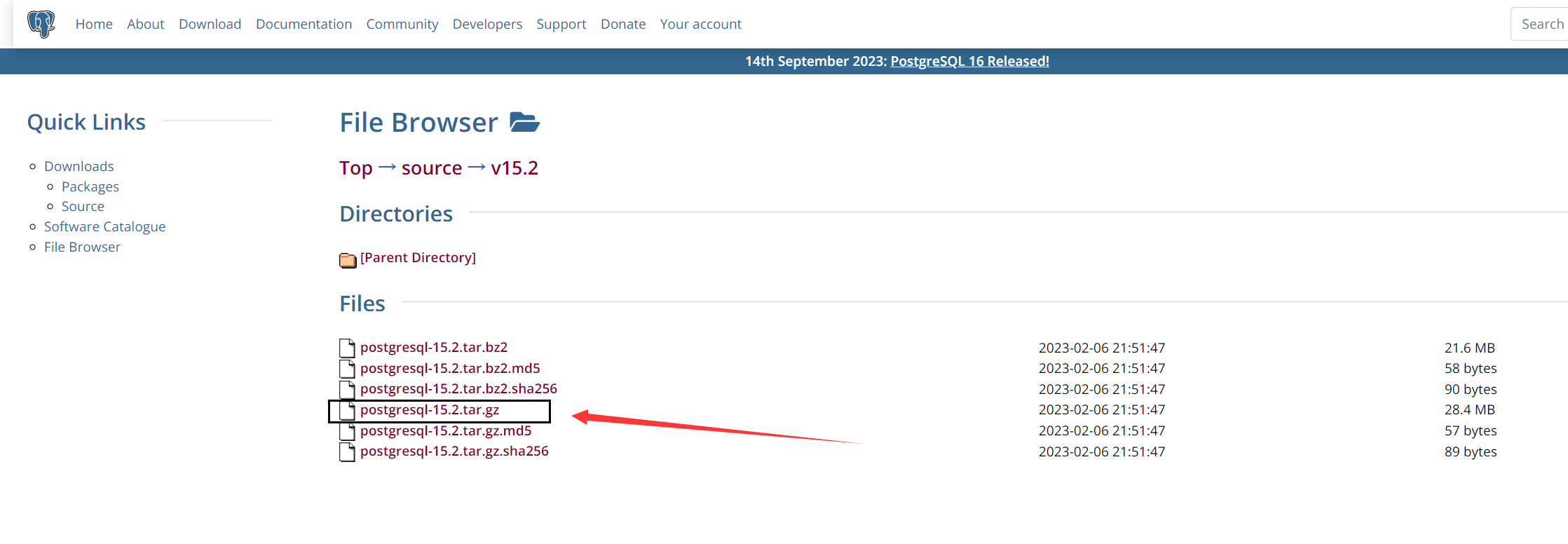
进入对应的目录后,可以复制对应的连接到Linux中下载,或者直接下载上传到Linux上
创建pgsql用户,以及创建对应目录
这个用户似乎是不能更改的,默认都是这个用户,这些目录是可以更改的
shell
adduser postgres
mkdir -p /data/pgsql/
chown postgres /data/pgsql/
su - postgres
参数调优
网上抄的
shell
[root@pgsql /usr/local/pg15/share/postgresql]# vim /etc/sysctl.conf
[root@pgsql /usr/local/pg15/share/postgresql]# sysctl -p
kernel.shmmax = 68719476736
kernel.shmall = 4294967296
kernel.shmmni = 4096
kernel.sem = 50100 64128000 50100 1280
fs.file-max = 7672460
net.ipv4.ip_local_port_range = 9000 65000
net.core.rmem_default = 1048576
net.core.rmem_max = 4194304
net.core.wmem_default = 262144
net.core.wmem_max = 1048576
[root@pgsql /usr/local/pg15/share/postgresql]#
[root@pgsql /usr/local/pg15/share/postgresql]#
[root@pgsql /usr/local/pg15/share/postgresql]# cat ^C
[root@pgsql /usr/local/pg15/share/postgresql]# cat /etc/sysctl.conf
# sysctl settings are defined through files in
# /usr/lib/sysctl.d/, /run/sysctl.d/, and /etc/sysctl.d/.
#
# Vendors settings live in /usr/lib/sysctl.d/.
# To override a whole file, create a new file with the same in
# /etc/sysctl.d/ and put new settings there. To override
# only specific settings, add a file with a lexically later
# name in /etc/sysctl.d/ and put new settings there.
#
# For more information, see sysctl.conf(5) and sysctl.d(5).
# pgsql config
# ##########################################
kernel.shmmax = 68719476736
kernel.shmall = 4294967296
kernel.shmmni = 4096
kernel.sem = 50100 64128000 50100 1280
fs.file-max = 7672460
net.ipv4.ip_local_port_range = 9000 65000
net.core.rmem_default = 1048576
net.core.rmem_max = 4194304
net.core.wmem_default = 262144
net.core.wmem_max = 1048576
####################################################################
shell
[root@sun01 opt]# vim /etc/security/limits.conf
soft nofile 131072
hard nofile 131072
soft nproc 131072
hard nproc 131072
soft core unlimited
hard core unlimited
soft memlock 50000000
hard memlock 50000000
安装依赖包
shell
yum -y groupinstall "Development Tools" "Legacy UNIX Compatibility"
yum -y install bison flex readline* zlib-devel gcc* make
解压源码包编译
shell
[root@pgsql ~]# ls
anaconda-ks.cfg  postgresql-15.2.tar.gz  test
[root@pgsql ~]# tar xf postgresql-15.2.tar.gz
[root@pgsql ~]# cd postgresql-15.2/
[root@pgsql ~/postgresql-15.2]# ls
aclocal.m4  config  configure  configure.ac  contrib  COPYRIGHT  doc  GNUmakefile.in  HISTORY  INSTALL  Makefile  README  src
[root@pgsql ~/postgresql-15.2]# ll
total 776
-rw-r--r--  1 1107 1107    397 Feb  7  2023 aclocal.m4
drwxrwxrwx  2 1107 1107   4096 Feb  7  2023 config
-rwxr-xr-x  1 1107 1107 601519 Feb  7  2023 configure
-rw-r--r--  1 1107 1107  89258 Feb  7  2023 configure.ac
drwxrwxrwx 61 1107 1107   4096 Feb  7  2023 contrib
-rw-r--r--  1 1107 1107   1192 Feb  7  2023 COPYRIGHT
drwxrwxrwx  3 1107 1107     87 Feb  7  2023 doc
-rw-r--r--  1 1107 1107   4264 Feb  7  2023 GNUmakefile.in
-rw-r--r--  1 1107 1107    277 Feb  7  2023 HISTORY
-rw-r--r--  1 1107 1107  63842 Feb  7  2023 INSTALL
-rw-r--r--  1 1107 1107   1875 Feb  7  2023 Makefile
-rw-r--r--  1 1107 1107   1213 Feb  7  2023 README
drwxrwxrwx 16 1107 1107    328 Feb  7  2023 src
[root@pgsql ~/postgresql-15.2]# ./configure --prefix=/usr/local/pg15
[root@pgsql ~/postgresql-15.2]# make && make install
在执行configure时,如果出现错误,需要补其依赖,这里的
--prefix是设置文件存放位置的,默认在/usr/local/pgsql,还要其他选项,在官方文档中写出来了
设置环境变量
shell
[root@pgsql /usr/local/pg15/share/postgresql]# su - postgres

[postgres@pgsql ~]$ cat .bashrc
.....
# 指定Pg的数据目录位置,不指定使用默认
export PGDATA=/data/pgsql/
export LANG=en_US.utf8
# 指定Pg的家目录,给下面的环境变量准备的
export PGHOME=/usr/local/pg15
export LD_LIBRARY_PATH=$PGHOME/lib:/lib64:/usr/lib64:/usr/local/lib64:/lib:/usr/lib:/usr/local/lib:$LD_LIBRARY_PATH
export DATE=`date +"%Y%m%d%H%M"`
export PATH=$PGHOME/bin:$PATH:.
export MANPATH=$PGHOME/share/man:$MANPATH
export PGUSER=postgres
[postgres@pgsql ~]$ source ./.bashrc
[postgres@pgsql ~]$ psql --version
psql (PostgreSQL) 15.2
初始化数据
shell
[postgres@pgsql ~]$ initdb -A md5 -D $PGDATA -E utf8 --locale=C -W
The files belonging to this database system will be owned by user "postgres".
This user must also own the server process.

The database cluster will be initialized with locale "C".
The default text search configuration will be set to "english".

Data page checksums are disabled.

Enter new superuser password:
Enter it again:

fixing permissions on existing directory /data/pgsql ... ok
creating subdirectories ... ok
selecting dynamic shared memory implementation ... posix
selecting default max_connections ... 100
selecting default shared_buffers ... 128MB
selecting default time zone ... PRC
creating configuration files ... ok
running bootstrap script ... ok
performing post-bootstrap initialization ... ok
syncing data to disk ... ok

Success. You can now start the database server using:

    pg_ctl -D /data/pgsql/ -l logfile start
以上命令是用于初始化 PostgreSQL 数据库的 initdb 命令的示例。让我们逐个解释命令中的各个选项和参数的含义:
initdb:这是 PostgreSQL 提供的用于初始化数据库的命令。-A md5:这是initdb命令的一个选项,用于指定身份验证方法。在示例中,md5表示使用基于口令的 MD5 加密进行身份验证。-D $PGDATA:这是initdb命令的一个选项,用于指定数据目录的路径。$PGDATA是一个环境变量,应该设置为 PostgreSQL 数据目录的路径。-E utf8:这是initdb命令的一个选项,用于指定数据库的默认字符编码。在示例中,utf8表示使用 UTF-8 编码。--locale=C:这是initdb命令的一个选项,用于指定数据库的默认区域设置。在示例中,C表示使用默认的 C 区域设置,这里指的是语言设置,包括数据库的语言、排序规则、日期和时间格式等本地化设置,具体可以去网上查-W:这是initdb命令的一个选项,用于提示用户输入超级用户密码。在示例中,该选项用于要求用户输入密码。
启停数据库
启动
shell
[postgres@pgsql ~]$ pg_ctl -D $PGDATA  start
waiting for server to start....2023-10-12 18:36:36.830 CST [25768] LOG:  starting PostgreSQL 15.2 on x86_64-pc-linux-gnu, compiled by gcc (GCC) 4.8.5 20150623 (Red Hat 4.8.5-44), 64-bit
2023-10-12 18:36:36.830 CST [25768] LOG:  listening on IPv6 address "::1", port 5432
2023-10-12 18:36:36.830 CST [25768] LOG:  listening on IPv4 address "127.0.0.1", port 5432
2023-10-12 18:36:36.832 CST [25768] LOG:  listening on Unix socket "/tmp/.s.PGSQL.5432"
2023-10-12 18:36:36.835 CST [25771] LOG:  database system was shut down at 2023-10-12 18:30:29 CST
2023-10-12 18:36:36.840 CST [25768] LOG:  database system is ready to accept connections
 done
server started
关闭
shell
[postgres@postgres ~]$ pg_ctl -D $PGDATA stop -ms #所有事务完成客户端断开连接
[postgres@postgres ~]$ pg_ctl -D $PGDATA stop -mf #推荐使用这种
[postgres@postgres ~]$ pg_ctl -D $PGDATA stop -mi #杀掉,相当于kill -9
重启
shell
[postgres@pgsql ~]$ pg_ctl -D $PGDATA -l logfile restart -mf使用systemd管理
shell
[root@pgsql /etc/systemd/system]# cat /etc/systemd/system/pgsql.service
[Unit]
Description=PostgreSQL Database Server
Documentation=https://www.postgresql.org/docs/
After=network.target

[Service]
Type=forking
User=postgres
Group=postgres
ExecStart=/usr/local/pg15/bin/pg_ctl start -D /data/pgsql -l /data/pgsql/pgsql.log
ExecStop=/usr/local/pg15/bin/pg_ctl stop -D /data/pgsql -m fast
ExecReload=/usr/local/pg15/bin/pg_ctl reload -D /data/pgsql
TimeoutSec=30
Restart=always

[Install]
WantedBy=multi-user.target